I was recently working on a project to make some additions to WordPress. One of the requests was to add in a YouTube video onto the page. It’s important to note that the site was only running Gutenberg features. My first instinct was to simply use the YouTube WordPress block to drop in the link and be on my way.
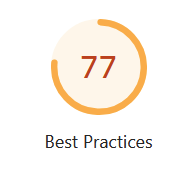
Before I included this video onto the home page, PageSpeed Insights Best Practices was over 90. But after I added the video in, Best Practices dropped to 77, showing an error with the video – specifically with cookies.
⚠︎ Uses third-party cookies
Third-party cookies may be blocked in some contexts.
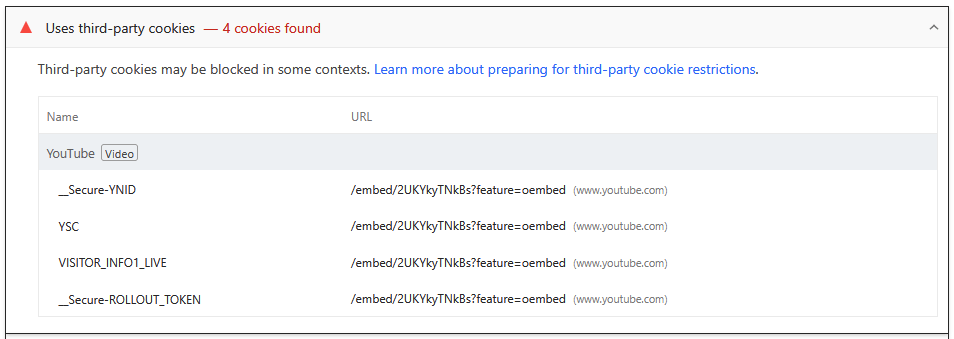
So what’s the problem here? The problem is actually embedding the default link to the YouTube video. The embed block is fine for a quick drop-in video, but if you want to fix the PageSpeed Insights Best Practices, you’ll need a different approach.
Here’s the Fix
You need to add the video in via the Custom HTML block. You cannot use the default URL for the video if you want these errors resolved. We’ll be using the iframe code from the video itself. When viewing the video in YouTube, you’ll see a Share button underneath.

Click on Share, then Embed.

You will now see the iframe code generated here. Don’t copy it yet! Scroll down and make sure Enable privacy-enhanced mode is checked.

This will ensure that the link turns into youtube-nocookie.com. This is the most important part, and is what fixes the PageSpeed Insights error. Now you can copy the code.
In your WordPress site, create a Custom HTML block and paste in the code. You will need to adjust the width and height accordingly.
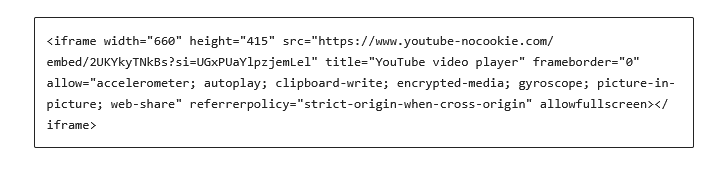
That’s it! Now clear your cache and re-check PageSpeed Insights. The Best Practice error will be gone and boost that score.