If you’ve been trying to use WP All Import and keep running into problems—timeouts, errors, failed imports, or partial uploads—you’re not alone.
WP All Import is one of the most powerful import tools for WordPress, but it’s also demanding. It needs correct server settings, stable connections, and enough memory to move thousands (or sometimes millions) of records without choking.
This guide covers the most common issues users run into. These are problems I’ve encountered and fixed personally, but I am basing this off of WP All Import documentation.
Cloudflare Proxy Enabled (CAUSES TIMEOUTS)

If your website is behind Cloudflare and the orange-cloud proxy is turned on, you will almost certainly run into:
- import timeouts
- stalled imports
- “server not responding” errors
- import loops that never finish
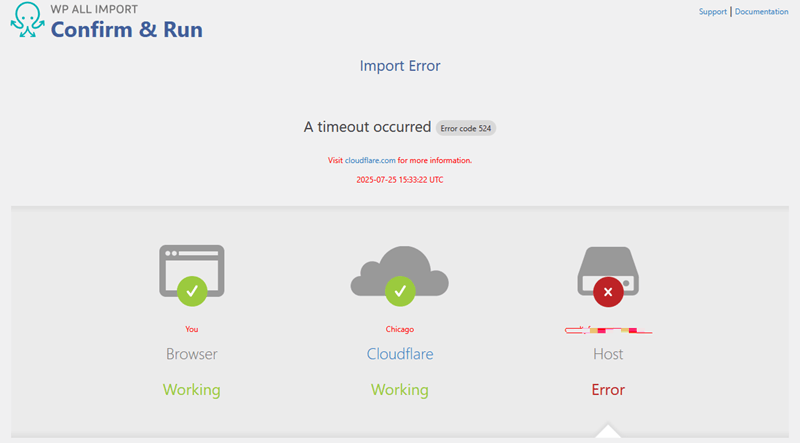
Cloudflare can be great for security and caching static assets — but it hates long-running PHP processes like WP All Import. If you see this import error, it’s because Cloudflare is timing out the process.
Fix:
- Log into your Cloudflare dashboard
- Go to DNS
- Turn OFF the Cloudflare proxy (switch from orange cloud → grey cloud) for:
- Your A records
- Any CNAME pointing to your origin server
- Wait for DNS to fully propagate (this may take up to an hour)
- Once the site is routing directly to your server, resume the import

Why this works
Cloudflare proxies time out after ~100 seconds. WP All Import sometimes needs a much longer timeout set, depending on the job size.
Direct server access = no proxy throttling = stable imports.
Running Out of Memory (WordPress Critical Error)
WP All Import is memory-hungry — especially when processing large CSV or XML files. You might see:
- “WordPress Critical Error”
- “Allowed memory size exhausted”
- White screen during import
Fix: Increase WordPress Memory Limit
In wp-config.php, add or increase (example):
define('WP_MEMORY_LIMIT', '512M');
define('WP_MAX_MEMORY_LIMIT', '1024M');
Also important:
- Increasing WP memory doesn’t magically give your server more RAM. The server has to have that memory already available to use.
- If you’re on shared hosting with strict usage, increasing the PHP memory limit likely won’t help.
- For large imports, shared hosting may not even be an option. VPS will be the next solution.
Import Timing Out Quickly (Low Server Timeout Settings)
If your imports fail after a few seconds or minutes, the issue is usually:
- low
max_execution_time - low
max_input_time - low
nginx timeout - slow PHP workers
- weak hosting
Fix: Increase Timeout Limits
Example:
max_execution_time = 300
max_input_time = 300
You may have to keep increasing this depending on how large the import file is. Cheap hosting providers often hard-limit timeouts to protect shared resources. If you notice the import timing out very quickly, this could be due to the server timeout settings set very low.
WP All Import likely won’t run properly on:
- very cheap shared hosting
- ultra-limited PHP environments
- servers preventing jobs over ~30 seconds
General Server Settings
You need to make sure you at least have the server requirements to run WP All Import. Also, make sure you are using the most up-to-date plugin version. I’ve had times where the process would time out, and having a plugin update completely fixes it. Here are the main things you need to look out for –
- Maximum Input Variables
- Maximum Upload File Size
- Maximum Post Size
- Memory Limit
- Maximum Execution Time
- FCGID Timeouts (Apache)